


Trying to optimize an entire Showit website on your own without SEO expertise is… rough.
One blog post tells you one thing. The next contradicts all of it. The next five are focused on features Showit doesn’t even have. And by article #10, you’re telling yourself that SEO probably isn’t even worth it anyway.
Just so we’re clear: it is worth it. But not without some platform-specific support in your life.
If you have a Showit website, you need advice from a Showit specialist. Because while, yes, SEO foundations apply to every website platform, Showit has some quirks that can hurt your SEO if you don’t know about them.
(Related post: Is Showit Good for SEO?)
By the way, I’m Shannon — a Showit SEO Specialist making your life easier by making your website work harder, so you can hit snooze every once in a while knowing it’s got you covered.
Here’s are 5 things you need to be aware of when working on your Showit website:
1. Google can still “see” your hidden elements & canvases.
You probably already know that Showit lets you hide certain elements — like an image, text box, icon, or, really, anything else — and even full canvases (or sections) of a page.
This is great for prepping content for an upcoming launch, supporting mobile page speed, and getting your site live quickly when you bought a Showit template and are still figuring out which sections you do or don’t need.
But even if they’re hidden from your readers’ view, these hidden elements and canvases still load in the HTML output of your site — aka Google sees them.
How does this impact SEO?
Most people hide sections without optimizing them first. So if that section has an extraneous h1 tag or broken links, Google “flags” them as errors on your site.
Google doesn’t trust websites full of errors. And Google doesn’t recommend websites it doesn’t trust. And we don’t want that, so here’s what to do.
How to fix it:
If you plan to publish the section soon, optimize it.
- Update the text tags – *especially* if there are h1 tags (remember, only one h1 per page)
- Link any buttons properly
- Properly size images so they don’t slow down your site
If you don’t plan to use the section, don’t hide it. Delete it.
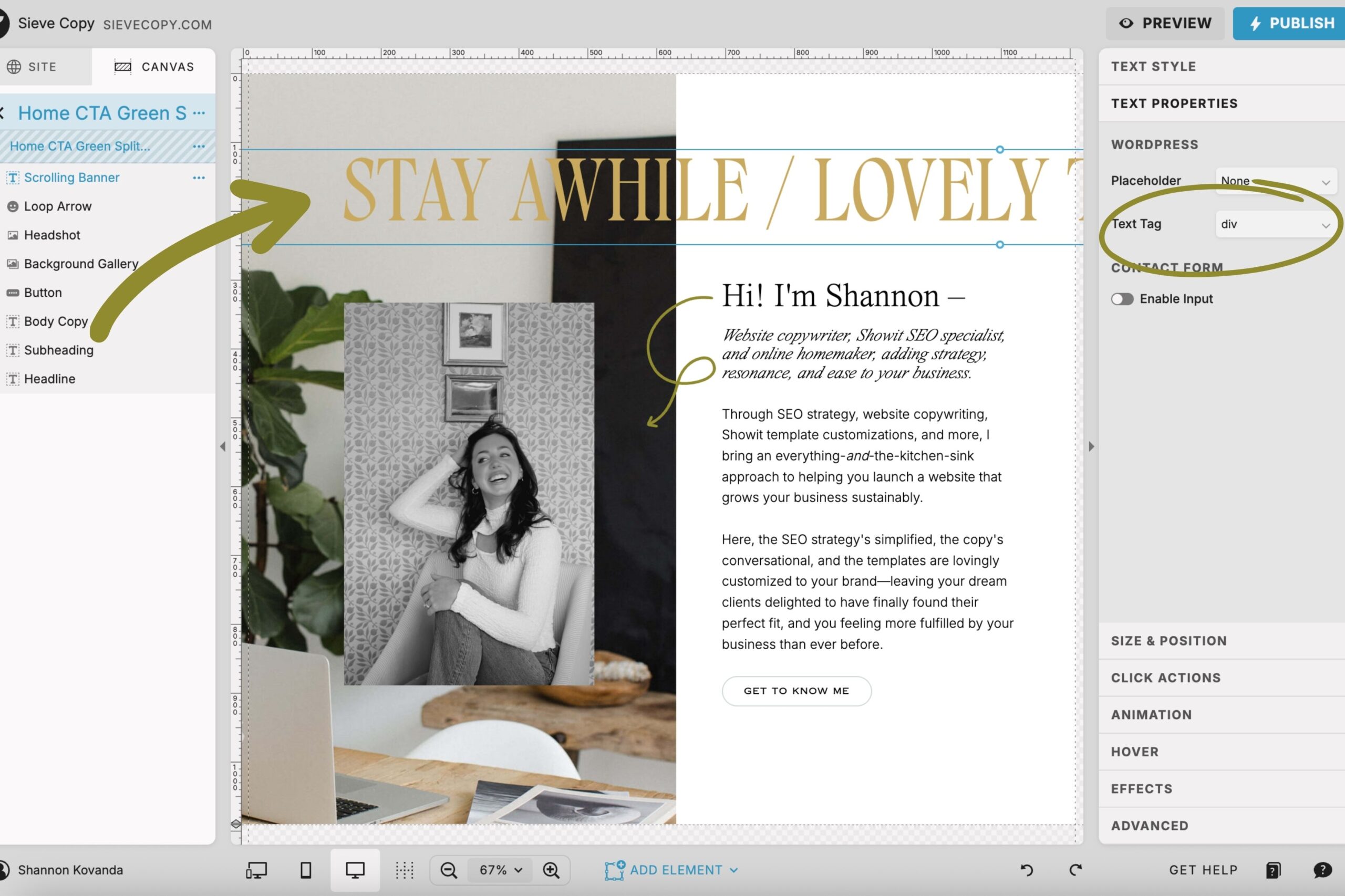
2. Every text element you add is auto-assigned a text tag.
When you add a text element – title, heading, subheading, or paragraph – to a page, it auto-assigns a text tag along with it:
- Titles become h1 tags
- Headings become h2 tags
- Subheadings become h3 tags
- Paragraphs become p tags
How does this impact SEO?
Text tags explain the structure of your content to Google and give it context.
For example, if you were to add several Titles across your page for their styling and not update the tags, you’d have a page full of h1s. That = major SEO no-no.
How to fix it:
You can check text tags for each section as you go along, or (and this is the method I prefer) design the whole page and then set all your text tags at once.
I have a full guide to Showit’s HTML text tags, but here’s the gist:
- h1:
- The most important headline on your page
- Must include that page’s focus keyword
- Lives above the fold
- Only set one text box per page as your h1
- h2:
- Use for the second-most important pieces of content on the page, like your services section header, your title, etc.
- h3:
- Use for the third-most important pieces of content on the page, like your service offerings and blog post titles
- p:
- Use for all body copy / paragraphs
- div:
- Use for decorative text elements, like numbers and accent notes
- If you don’t use Showit’s native button element and design your own, tag them as div
- nav:
- Reserved for navigational links in the main navigation and the footer (not for buttons throughout each page!!!)
3. Duplicating a page also duplicates all of its SEO settings.
Duplicating pages is commonplace in Showit. But when you do so, all the SEO settings stay intact… until you manually update them, of course. Here’s why you need to.
How does this impact SEO?
Google doesn’t like duplicate page titles or meta descriptions. Plus, if that page shows up on Google, that metadata will be misleading to readers. They’ll click expecting one thing and land on a totally different page, probably leading them to bounce off your site immediately.
How to fix it:
Asked Google not to track? Make sure you uncheck that box if this page should be tracked.
Update the page title and meta description.
Update the share image to one that supports this page’s content.
And check all your heading tags to see what needs to be updated.
4. Adding 9,483 fonts to your library can slow down your site.
This one’s for the designers. Listen, I get it. I do it, too. Trying different font pairings in Showit is fun.
But fonts were meant to be hoarded in your Downloads folder. Not inside Showit.
How does this impact SEO?
If site speed is an issue for you, it’s a good idea to remove fonts you aren’t using. Otherwise, it’s okay. Don’t panic. You’re fine. But I’ll still tell you how to fix it. 🙂
How to fix it:
Go to your Media Library. Find those 9,483 woff files you uploaded. And tuck them safely somewhere outside of Showit.
When working on client sites, remove extra fonts you uploaded but didn’t use before handing it off.
5. Changing the page name in your menu changes that page’s URL slug.
Unfortunately, Showit doesn’t allow you to name a page one thing and customize the URL slug to another. So it’s important that whatever you name the page is what you want the URL slug to be too.
For example, if I name a page “Showit SEO Services” in my page menu, the URL slug will be “/showit-seo-services.”
If I happened to need or want to change the name of that page later, the URL slug would update along with it.
How does this impact SEO?
When you change a page name, every link to the old version of that page will break — both on your own site and on other sites that may be linking to that page.
Now, when people click that link, they’ll land on a 404 error page instead of the content you want them to see.
404 errors pages often lead to increased bounce rates, meaning those people exit out of your website almost immediately instead of clicking around your site to find what they were originally expecting to see.
And when a lot of people leave your site quickly, Google takes that as a hint that your content isn’t engaging your readers well and is less likely to recommend your site as one of its expert resources.
How to fix it:
Sometimes, renaming a page is necessary. If that’s the case, there are two things you’ll need to take care of after doing so:
- Set up a redirect in Showit
- Links will break, so relink buttons, navigational links, and internal links directed to that page
As a bonus, set up an optimized 404 error page to encourage people to stay on your site if they come across a broken link, instead of clicking the ‘X’ right away.
TL;DR: If you use Showit, you need to know about these quirks that can negatively impact your SEO.
Luckily, you found a Showit SEO Specialist to come to for all things Showit SEO. (Hi!)
For more SEO and Showit-specific support, here’s how I can help:
- Subscribe to The Snoozeletter for one simple SEO tip every Tuesday evening.
- Hand off your SEO completely with one-on-one Showit SEO services.
- Keep reading the blog for more Showit SEO tips and tutorials.
+ view the comments