



You’ve proudly hit “Publish” on your Showit website, ready to show it off to the world. But Google needs to know your website exists if you want to start attracting organic leads.
Submitting your Showit sitemap to Google Search Console is like tapping Google on the shoulder and telling it to start paying attention to you.
If you didn’t submit your sitemap, Google would eventually find and read through your website.
But doing so right after publishing a new or updated version of your website is a shortcut of sorts.
- You hit “Publish.”
- You submit your Showit sitemap to Google Search Console.
- Google indexes your page accordingly.
And, just so we’re clear: “indexing” is just a fancy way of saying that Google has seen, analyzed, and ranked your content accordingly.
Today, I’m walking you through what is a sitemap, why you need one, where to find yours, and how to submit your Showit sitemap to Google Search Console.
If you already have your Showit sitemap handy, skip ahead to what you need here.
Click a heading below to jump to the section you need, or keep reading:
- How to submit your Showit sitemap to Google Search Console
- How often you should submit your sitemap to Google Search Console
What is a Showit sitemap?
Your Showit sitemap outlines the pages of your website.
In tech-speak, this is called an “xml sitemap,” but we’ll just stick with “sitemap” here.
Your sitemap lists every page of your Showit website that you want Google to know about and rank.
What pages of my website are listed in my Showit sitemap?
Your sitemap includes every published page of your website that isn’t marked by a “noindex” tag.
In Showit, this is the “Ask Google to ignore this page” setting under the Advanced Settings tab on the right-hand side menu:
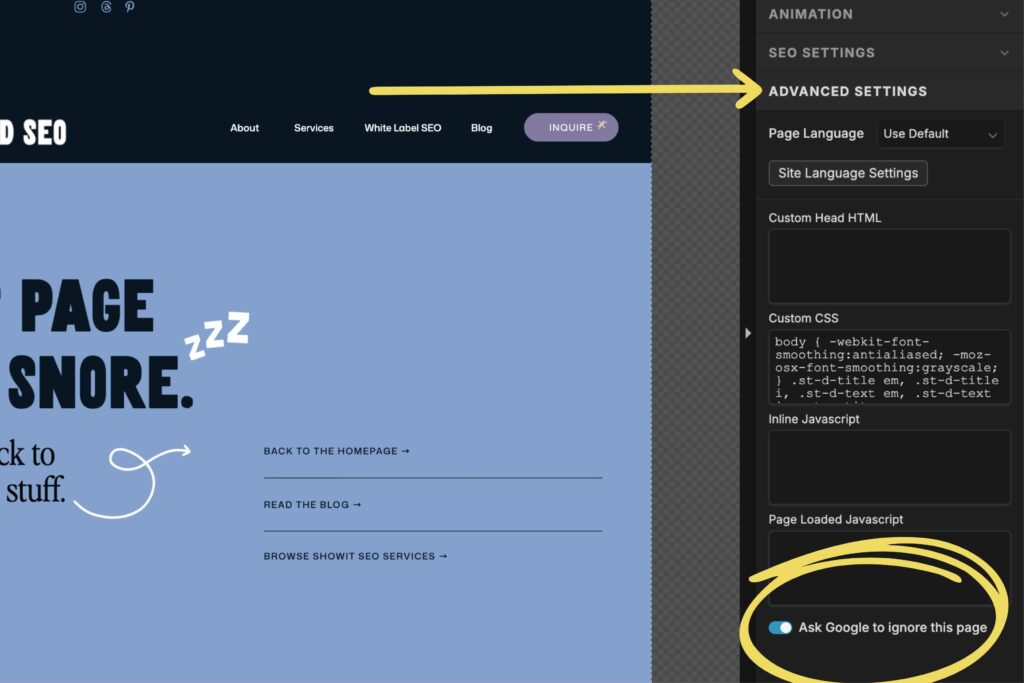
When toggled “on,” this setting blocks Google from indexing that page.
Use this setting for any page that you don’t want to show up on Google, like a private page for onboarding clients, 404 error pages, legal policy pages, or thank you pages that you redirect readers to after they’ve downloaded a freebie or submitting a form.
Why do I need a sitemap?
In the simplest terms, you need a sitemap so Google can crawl (aka read) these pages and track your optimization efforts.
Your website includes your main navigation (which typically includes pages like home, about, services, blog, contact), but it probably also has pages that aren’t linked in your main navigation, like a resources page, specific service pages, a pricing page, blog posts, a newsletter page, freebie opt-in pages, etc.
Even though these unlinked pages aren’t in your main navigation, there’s still an opportunity for them to rank on Google… But only if Google knows about them.
When you submit your Showit sitemap to Google Search Console, you’re giving Google an outline of every page that exists within your website, so Google can start indexing your content (aka listing your content in search results).
How do I know if my content is indexed yet or not?
Easily. All you need to do is open up Google and search: “site:[yourdomain]”.
Using Showit as an example, I’d type “site:showit.com” into Google.
You can see Showit has 1,930 pages indexed:
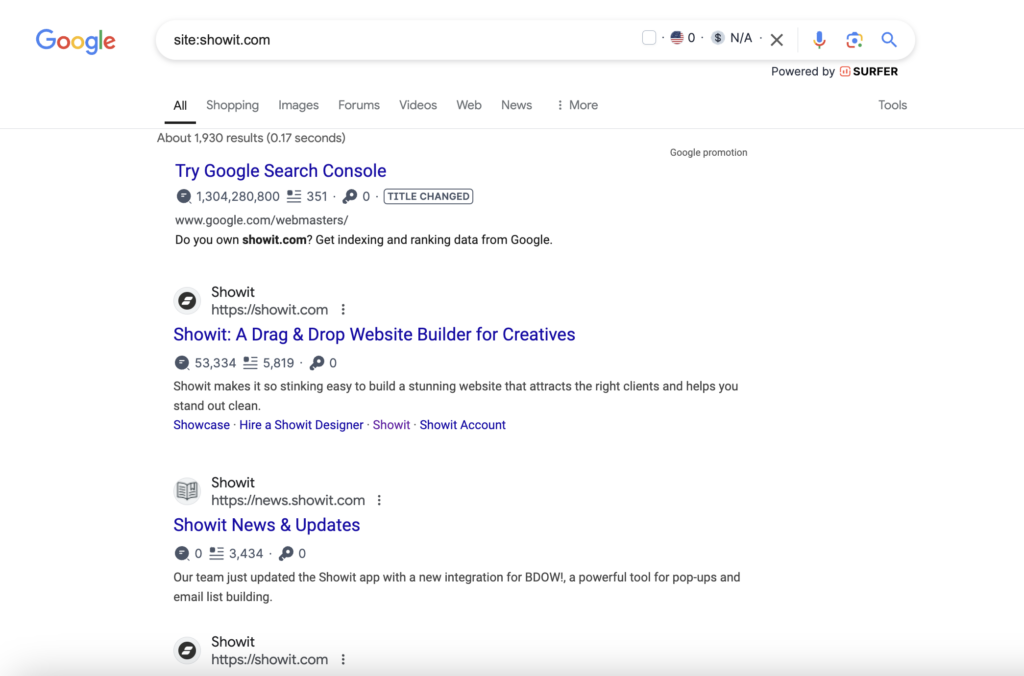
If you search your domain and your pages aren’t showing up, your content isn’t indexed.
How do I find my Showit sitemap?
Your Showit sitemap will follow this formula: https://yourdomain/siteinfo.xml
But if you also have a blog on your Showit website, you’ll need to submit a second sitemap.
Your Showit blog sitemap will follow this formula: https://yourdomain/sitemap_index.xml
Just type these formulas with your domain into tabs of your browser and keep them handy while you move to the next step.
Now, it’s time to submit your Showit sitemaps to Google Search Console.
How do I submit my Showit sitemap to Google Search Console?
Before you submit your Showit sitemap to Google Search Console, you should know what it is.
Google Search Console is a free analytics tool that helps you figure out what keywords Google associates with your website. You can also use it to find errors that you need to fix, and submit new content to be indexed (aka ranked) by Google.
Remember, “index” is just a fancy way of saying that Google had seen, analyzed, and ranked your content within its search results.
So after your Showit website is published, the very. first. thing. you need to do is submit your Showit sitemap to Google Search Console. But it doesn’t connect via your Showit SEO settings like your Google Analytics. Instead, you need to set it up step by step. Here’s how:
(You can skip to Step 3 if you’ve already set up your Google Search Console account.)
Step 1. Open Google Search Console
Head to http://search.google.com/search-console/welcome to begin using Google Search Console.
Step 2. Verify Site Ownership
Verify site ownership so Google Search Console can start monitoring your data.
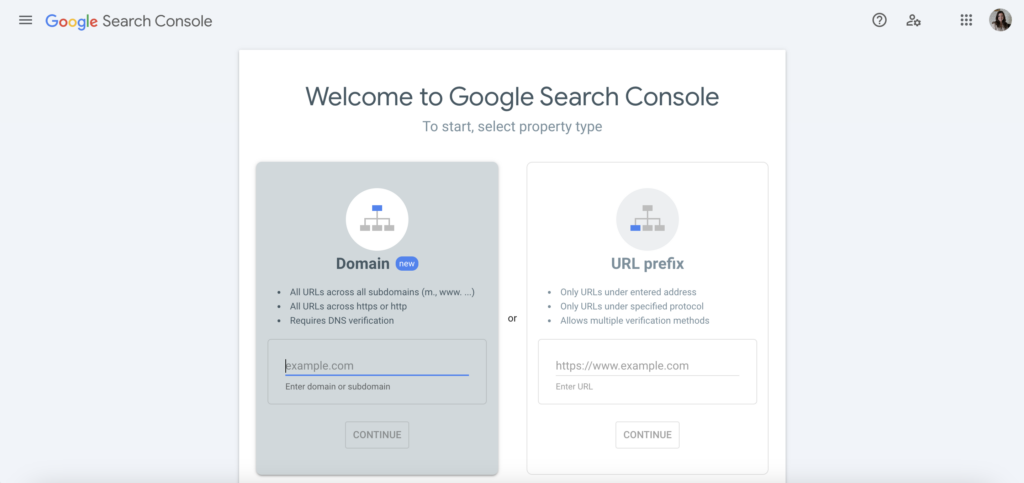
There are two methods to do this:
- “Domain” uses DNS verification & is best for tracking an entire site (plus its subdomains).
- “URL Prefix” is best for tracking a single URL or subdomain.
I recommend using the “Domain” option to keep everything on Google’s radar. This will require a tiny bit of technical expertise as you verify your DNS, but once you’ve done it, you won’t need to do it again.
Step 3. Locate Your Showit Sitemap URL(s)
Open up a browser tab and enter your Showit sitemap URL. It will follow this formula: https://yourdomain/siteinfo.xml
If you have a Showit blog, open another tab and enter your blog sitemap URL. It will follow this formula: https://yourdomain/sitemap_index.xml
Keep these handy until you’re ready for Step 4.
Step 4. Paste Your Showit Sitemap URL(s) Into Google Search Console
Navigate to the “Sitemaps” tab on the left-hand side menu of Google Search Console.
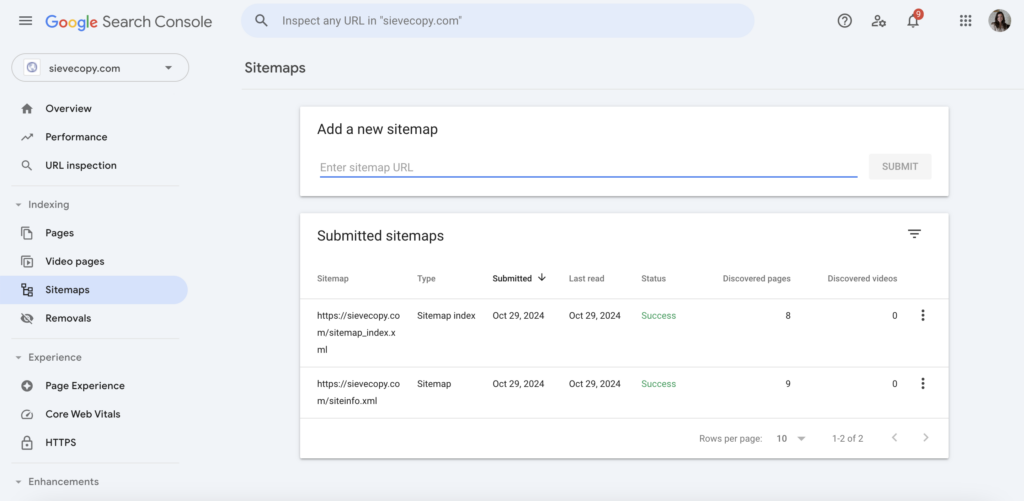
Paste your Showit sitemap URLs (one at a time, if you have two) where it says “Add a new sitemap” and click “Submit.”
If a “Success” message doesn’t pop up straight away, refresh the tab or check back shortly. Sometimes it takes a few minutes.
How often should I submit my Showit sitemap to Google?
Now that you’ve submitted your sitemap, you might be wondering if you ever need to re-submit your Showit sitemap to Google Search Console.
The answer is… maybe.
If you’ve added new pages, removed old ones, or rebranded and relaunched your site, you’ll want to resubmit your sitemap.
If you haven’t updated your content, there’s no need to re-submit your sitemap.
And that’s it! You’ve officially submitted your Showit sitemap to Google Search Console and can start tracking your SEO efforts.
Have we met yet? I’m Shannon — a Showit SEO Specialist helping online entrepreneurs wake up to organic leads and sales with a website that works for you (even when you’re fully horizontal).
- Browse my Showit SEO services for online entrepreneurs
- Browse my white label SEO services for copywriters and Showit designers
- Subscribe to The Snoozeletter for one simple SEO tip every Tuesday evening.
+ view the comments